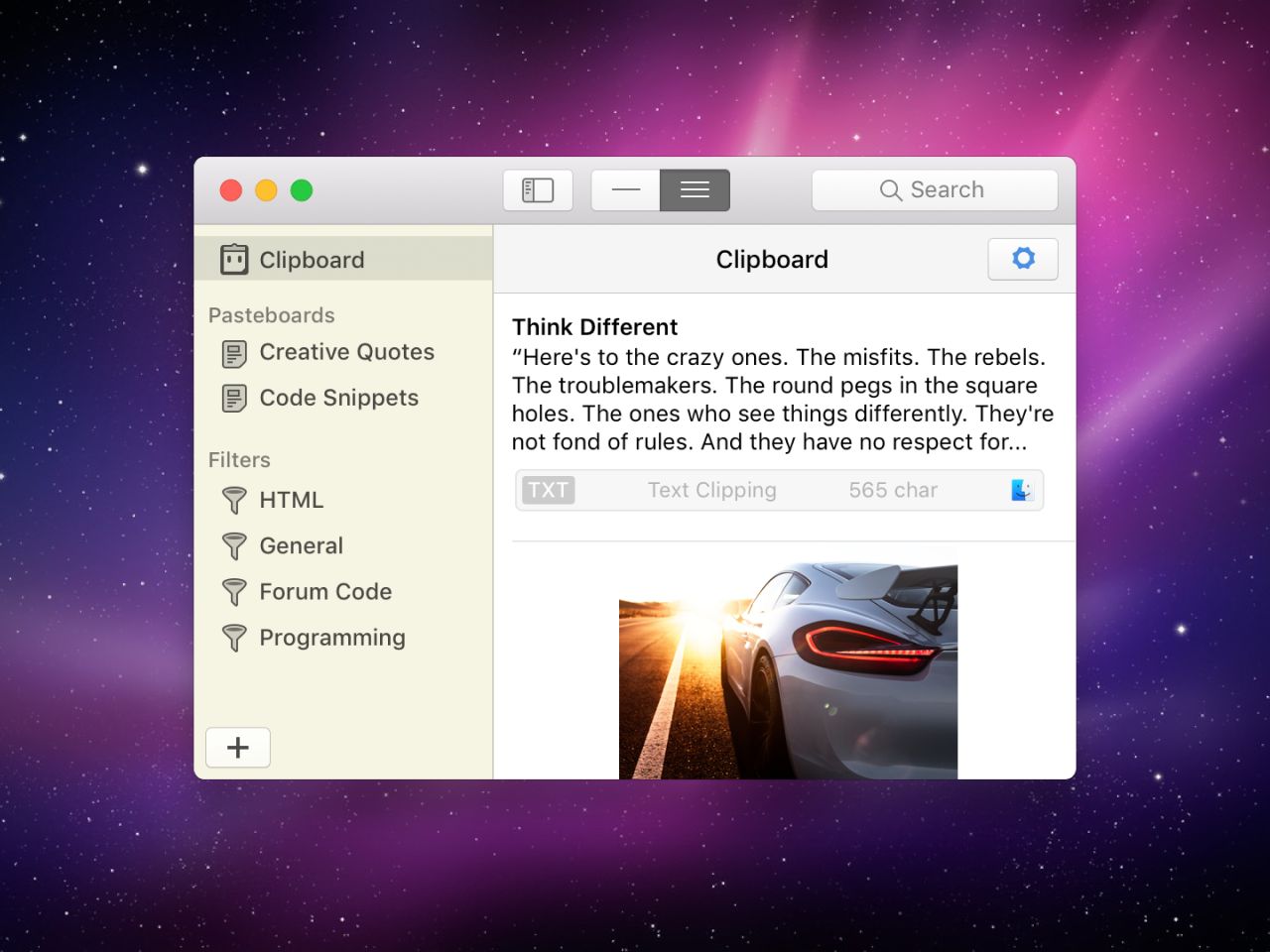
Clipboard history is one of those features that you probably don’t know you need until you try it, and when you do, there’s no going back. There’s also a decent chance that you already have access to clipboard history, but without being aware of it. If you’re running Tahoe or later, simply press Cmd + Space to open Spotlight, and then Cmd + 4 to open the clipboard history.
So if clipboard history is built-in to macOS, what’s the point of Pastebot? It’s a fair question. Like most features already existing in third-party apps that Apple adds to macOS, the clipboard history in Tahoe does the job for most use cases, but without any advanced features or settings. See 1Password vs. the built-in Passwords app for another example of this. If you want to modify the number of clippings stored in your clipboard history, change the maximum file size for file clippings, blacklist apps from being included in the history, or add keyboard shortcuts for pasting, for example, the second item in your clipboard history, you’re out of luck with the built-in macOS clipboard history, but Pastebot has got your back.
The best feature of Pastebot is the filters. Say you copy a couple of paragraphs of text, and you want to paste them wrapped in <p> HTML tags. Or convert them to plain text. Or remove all emojis from it. Or convert it to smart punctuation. Through the Pastebot pop-up window (Shift + Cmd + V), you can select from these built-in paste filters and many more, and even add filters of your own. Apple would never.


